WordPress updates before you click
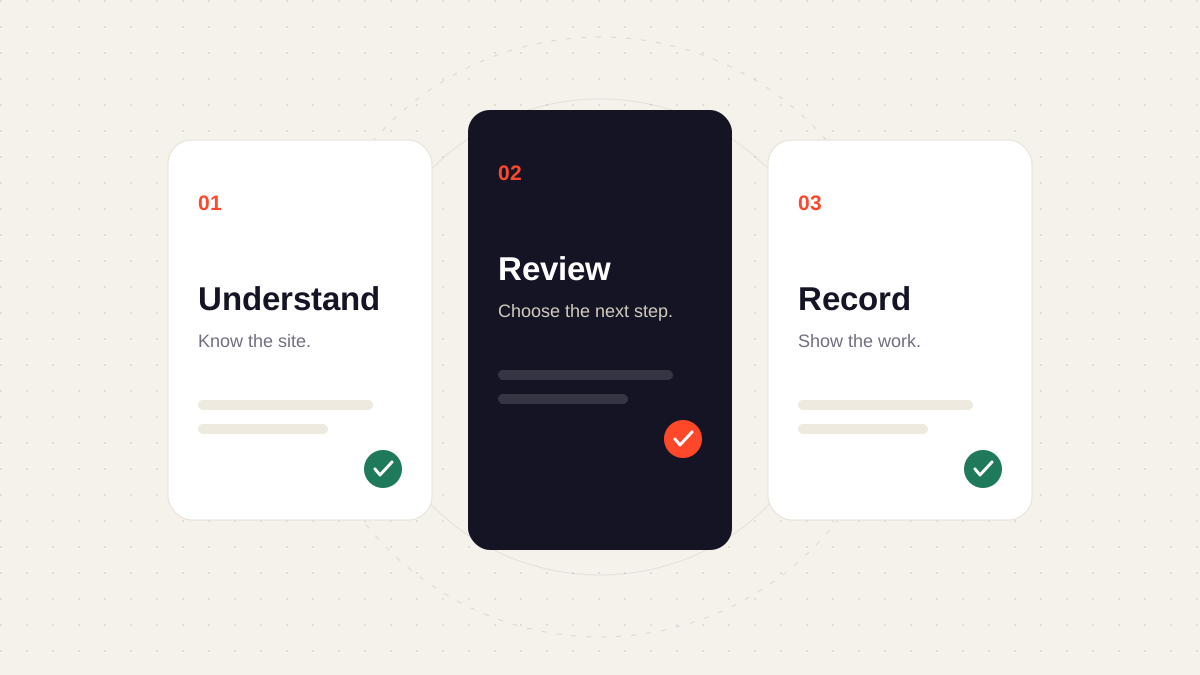
Review the change, identify the affected journeys, confirm recovery, and verify the result. An available update is a reason to investigate the next step.
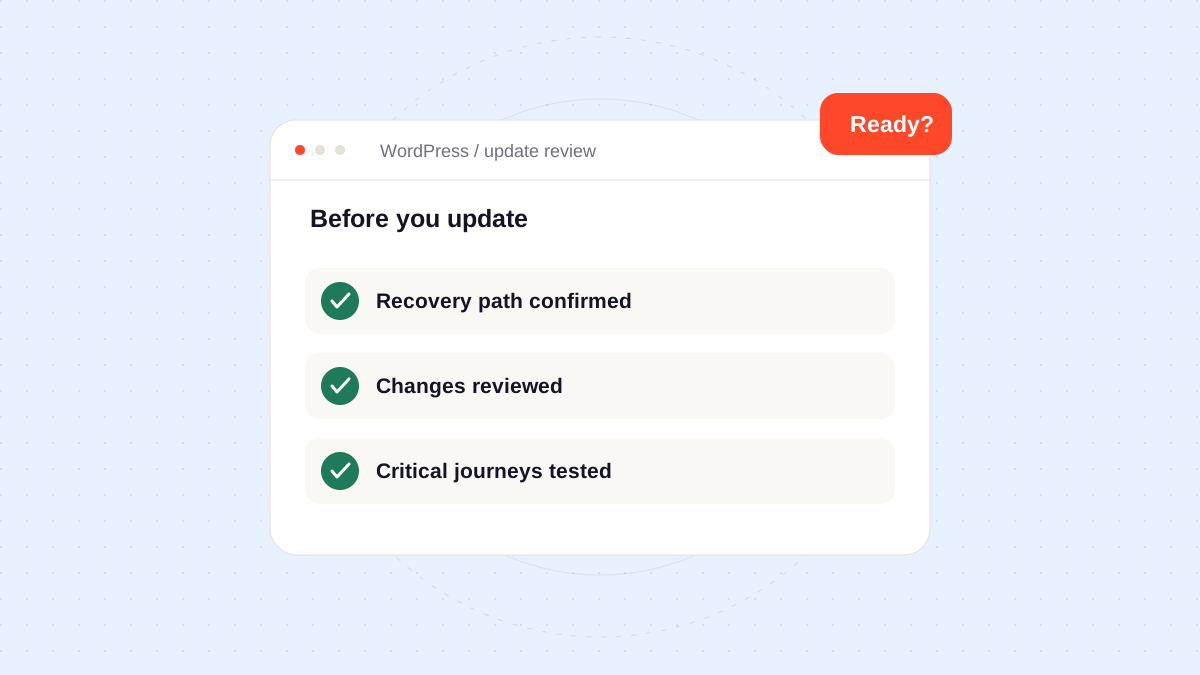
An update screen tells you that a new version is available. The maintenance decision also depends on the site, its dependencies, and the consequences of an interruption.
Build context before the update
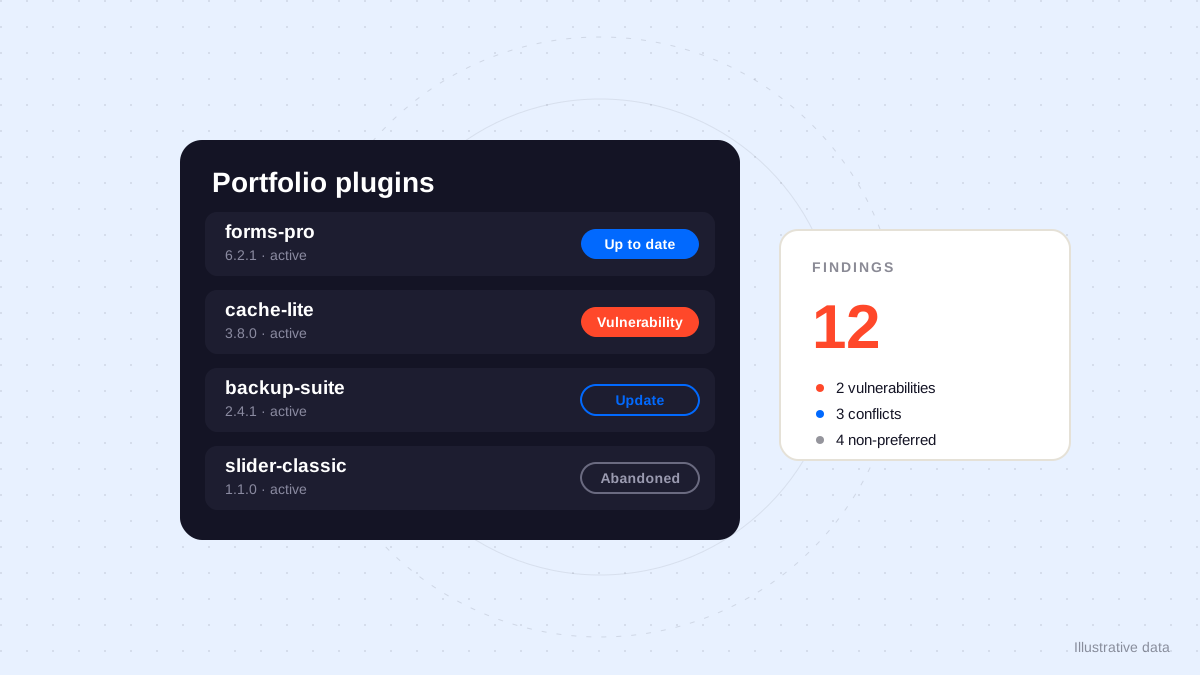
Keep a current inventory of the active theme, plugins, and important integrations. Record why each dependency matters and who can answer questions about it.
For an unfamiliar plugin, start by understanding the role it plays. A small extension can still sit in the middle of an important form or booking journey.
Prepare a recovery path
Before applying a change, establish what recovery means for this particular site:
- Locate the relevant backup or previous version.
- Confirm who has the access needed to restore it.
- Consider content or orders created after the backup.
- Choose a maintenance window that fits the site’s activity.
“We have a backup” and “we know how to restore this website” are different pieces of information. Record both.
Verify the result
Use checks based on the website’s real journeys. Visit key pages, test the affected form, and inspect the mobile layout where it matters. Note the environment and the time of the check.
| Result | Useful next step |
|---|---|
| Verified | Record the versions and checks performed |
| Unclear | Investigate before describing the work as complete |
| Failed | Follow the agreed recovery and escalation process |
Keep the final note short: the change, the observed result, and any outstanding action. Explore Orbit’s WordPress approach for the context behind a reviewed maintenance workflow.